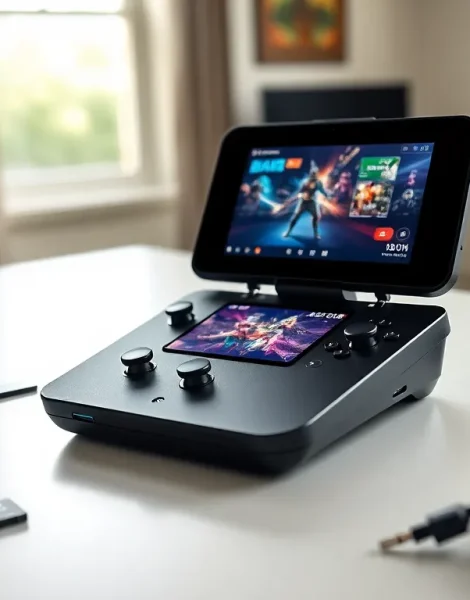
This Steam Deck guide covers everything gamers need to know about Valve’s handheld gaming PC. The Steam Deck changed portable gaming when it launched in 2022. It runs full PC games, supports mods, and offers desktop functionality in a handheld form factor. Whether someone just bought a Steam Deck or is considering one, this guide breaks down setup, performance optimization, game compatibility, and essential accessories.
Table of Contents
ToggleKey Takeaways
- The Steam Deck is a full handheld gaming PC that runs SteamOS, supports mods, emulators, and even Windows installation.
- Use the frame rate limiter (40fps or 30fps) and TDP settings to extend battery life from 90 minutes up to 8 hours.
- Check Valve’s compatibility ratings—”Verified” games work perfectly, while “Playable” titles may need minor adjustments.
- Enable FSR (FidelityFX Super Resolution) to boost performance by 20-30% with minimal visual impact on the 800p screen.
- Expand storage easily with microSD cards, or replace the internal 2230 M.2 SSD for up to 2TB of space.
- A USB-C dock transforms your Steam Deck into a home console experience when connected to a TV with a Bluetooth controller.
What Is the Steam Deck?
The Steam Deck is a handheld gaming PC made by Valve. It runs SteamOS, a Linux-based operating system, and plays games from the Steam library. Unlike the Nintendo Switch, the Steam Deck functions as a full computer. Users can install Windows, run emulators, and access non-Steam games.
Valve currently offers two main models. The LCD version features a 7-inch screen with 1280×800 resolution. The OLED model has a slightly larger 7.4-inch HDR display with better color accuracy and contrast. Both versions include custom AMD APUs with RDNA 2 graphics.
The Steam Deck guide wouldn’t be complete without mentioning its controls. The device has two thumbsticks, a D-pad, ABXY buttons, and four back buttons. It also includes two trackpads for mouse-like input. These trackpads make strategy games and desktop applications much easier to use.
Storage options range from 64GB to 1TB depending on the model. All versions support microSD cards for expanded storage. Many owners use microSD cards to store their game libraries since AAA titles can exceed 100GB each.
Setting Up Your Steam Deck
Setting up a Steam Deck takes about 15 minutes. The device walks users through the process with on-screen instructions.
First, charge the Steam Deck. Valve recommends a full charge before the initial setup. The device uses a USB-C charger and takes roughly two hours to reach 100%.
Next, connect to Wi-Fi and sign into a Steam account. The Steam Deck downloads any necessary updates automatically. These updates can take several minutes depending on internet speed.
Configuring Controls and Display
The Steam Deck guide recommends checking display settings after setup. Users can adjust brightness, enable night mode, and set refresh rate preferences. The LCD model runs at 60Hz, while the OLED version supports up to 90Hz.
Controller settings deserve attention too. Steam Input lets users remap every button. They can create custom profiles for individual games. The back buttons work great for actions that normally require taking thumbs off the sticks.
Installing Games
Installing games works just like on a desktop PC. Browse the Steam store, purchase games, and download them. The Steam Deck shows compatibility ratings for each title. “Verified” games work perfectly. “Playable” games might need minor adjustments. “Unsupported” games have known issues.
For microSD storage, format the card through the Steam Deck’s settings menu. The device uses ext4 formatting by default. Games can then be installed directly to the SD card.
Optimizing Performance and Battery Life
Battery life on the Steam Deck ranges from 90 minutes to 8 hours. The difference depends entirely on what games are running and how settings are configured.
This Steam Deck guide prioritizes practical tips. Start with the frame rate limiter. Capping games at 40fps or 30fps dramatically extends battery life. Many players find 40fps acceptable for single-player games. The 40Hz refresh rate option on newer firmware makes 40fps feel smoother.
TDP (Thermal Design Power) limits help too. Users can set power limits between 3W and 15W. Lower wattage means less heat and longer battery life. Indie games and older titles run fine at 8-10W. Demanding AAA games need the full 15W.
Graphics Settings That Matter
FSR (FidelityFX Super Resolution) is a Steam Deck owner’s best friend. It renders games at lower resolutions and upscales them. The 800p screen hides upscaling artifacts well. FSR can boost performance by 20-30% with minimal visual impact.
In-game settings matter more than on desktop PCs. Shadows, ambient occlusion, and volumetric effects drain battery fast. Lowering these from ultra to medium often doubles battery life without obvious visual downgrades.
The Steam Deck guide also suggests enabling per-game profiles. Users can save different performance settings for each title. The Steam Deck remembers these preferences automatically.
Best Games and Compatibility Tips
Thousands of games run on the Steam Deck. Valve’s compatibility database helps players find titles that work well.
Top Verified Games
Some games feel made for handheld play. Hades, Vampire Survivors, and Stardew Valley work flawlessly. Larger titles like Elden Ring, Baldur’s Gate 3, and Cyberpunk 2077 run great with adjusted settings. The Persona series and other JRPGs suit the portable format perfectly.
Roguelikes and deck-builders shine on Steam Deck. Slay the Spire, Monster Train, and Inscryption offer quick sessions ideal for portable gaming. Strategy games like Civilization VI work surprisingly well thanks to the trackpads.
Handling Unsupported Games
The Steam Deck guide acknowledges that some games have issues. Anti-cheat software causes most problems. Games using Easy Anti-Cheat or BattlEye may not work in multiplayer modes. Single-player portions often function fine.
ProtonDB is an essential resource. This community database tracks how well games run through Proton, the compatibility layer that runs Windows games on Linux. User reports include tweaks and fixes for problematic titles.
For games outside Steam, users can add them as non-Steam games. Heroic Games Launcher handles Epic Games Store and GOG libraries. Lutris manages other launchers and standalone games.
Essential Accessories and Upgrades
The Steam Deck works fine out of the box. But certain accessories improve the experience significantly.
Protection and Cases
A carrying case is essential for travel. Valve includes a basic case with every Steam Deck. Third-party options offer better protection and storage pockets for chargers and accessories. Screen protectors prevent scratches during transport.
Docking Solutions
Valve’s official dock costs $89. It provides HDMI output, USB ports, and ethernet. Third-party docks work too and often cost less. Any USB-C hub with power delivery supports the Steam Deck’s desktop mode.
A dock transforms the Steam Deck into a home console. Connect it to a TV, pair a Bluetooth controller, and play from the couch. This Steam Deck guide recommends having a dock at home and keeping the handheld portable.
Storage Upgrades
MicroSD cards offer the easiest storage expansion. A 512GB card holds 5-10 AAA games or dozens of indie titles. SanDisk and Samsung make reliable options.
Advanced users can replace the internal SSD. The Steam Deck uses a 2230 M.2 drive. Upgrading requires opening the device but dramatically increases storage capacity. A 1TB or 2TB drive eliminates storage concerns entirely.
Audio Accessories
Bluetooth headphones connect easily for private gaming sessions. Wired USB-C headphones avoid any wireless latency. The built-in speakers sound decent, but headphones provide better audio quality and immersion.