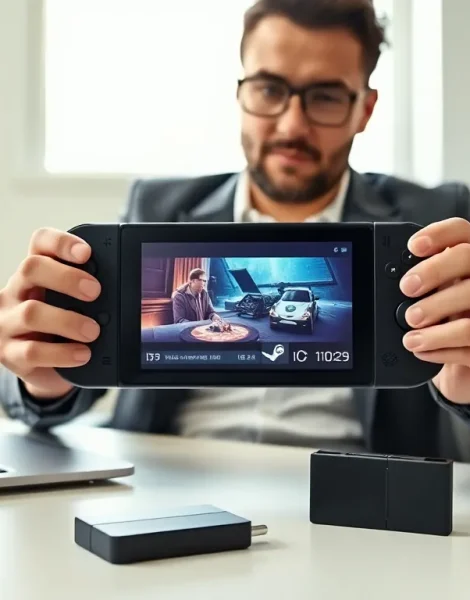
Learning how to Steam Deck effectively starts the moment you unbox Valve’s handheld gaming PC. This portable device runs a full Linux-based operating system and plays thousands of PC games without a desktop setup. New owners often feel overwhelmed by the Steam Deck’s features and options. This guide walks through every essential step, from initial setup to advanced customization. By the end, users will know how to Steam Deck like a pro and get maximum value from their purchase.
Table of Contents
ToggleKey Takeaways
- Learning how to Steam Deck starts with a simple 10-15 minute setup process including Wi-Fi connection, Steam login, and system updates.
- Expand your Steam Deck’s 64GB base storage with a high-speed microSD card (A2/U3 rating) to store large games without slow load times.
- Use the Quick Access menu (three-dot button) to adjust brightness, frame rate, and performance settings without leaving your game.
- Over 10,000 games are Verified or Playable on Steam Deck, and you can install non-Steam games through Desktop Mode.
- Maximize battery life by capping frame rate at 40 FPS, lowering brightness to 50%, and enabling half-rate shading for less demanding games.
- Customize controls for any game using community layouts, trackpad configurations, and gyroscope aiming for precision gameplay.
Setting Up Your Steam Deck for the First Time
The Steam Deck setup process takes about 10-15 minutes. Users should charge the device to at least 20% before starting.
Powering On and Language Selection
Press the power button on the top edge to turn on the Steam Deck. The device displays a language selection screen first. Choose the preferred language and region settings.
Connecting to Wi-Fi
The Steam Deck needs an internet connection for setup. Select a Wi-Fi network from the list and enter the password using the on-screen keyboard. The touchscreen makes this step faster than using the controls.
Logging Into Steam
Enter Steam account credentials on the next screen. Users without a Steam account can create one directly on the device. Two-factor authentication requires a code from the Steam mobile app or email.
System Updates
The Steam Deck downloads any available system updates automatically. This process can take several minutes depending on connection speed. Don’t skip this step, updates fix bugs and improve performance.
Storage Considerations
The base Steam Deck model includes 64GB of storage. Games like Elden Ring or Baldur’s Gate 3 require 50GB+ each. Users can expand storage with a microSD card up to 1TB. Insert the card into the slot on the bottom edge. The Steam Deck formats it automatically for game storage.
Navigating the Steam Deck Interface
The Steam Deck runs SteamOS 3.0, a custom interface built for handheld use. Understanding this interface makes everything else easier.
The Main Menu
The home screen shows recent games, the Steam library, and store access. The left trackpad or D-pad moves between sections. The A button selects items. The B button goes back.
Quick Access Menu
Press the three-dot button on the right side to open Quick Access. This menu controls:
- Brightness and volume
- Performance overlay
- Battery status
- Bluetooth and Wi-Fi settings
- Notifications
This menu stays accessible during gameplay. It’s the fastest way to adjust settings without leaving a game.
The Steam Button Menu
The Steam button opens a different menu with broader options. Users find friends lists, downloads, settings, and power options here. Think of the Steam button as the main system menu.
Desktop Mode
The Steam Deck includes a full desktop mode. Hold the power button and select “Switch to Desktop.” This transforms the device into a standard Linux PC. Desktop mode lets users install non-Steam software, browse the web, and access files. Press the Steam button on the desktop and select “Return to Gaming Mode” to switch back.
Installing and Playing Games
Installing games on the Steam Deck mirrors the process on a regular PC, with a few handheld-specific details.
Downloading from the Steam Library
Open the library from the home screen. Select any owned game and press “Install.” The Steam Deck shows estimated download time and required storage space. Users choose between internal storage and microSD card for each installation.
Steam Deck Verified Games
Valve tests games for Steam Deck compatibility. Look for these labels:
- Verified: Works perfectly on Steam Deck
- Playable: Works with minor issues or adjustments
- Unsupported: Major problems or doesn’t work
- Unknown: Not yet tested
Over 10,000 games currently hold Verified or Playable status. Most popular titles work fine.
Non-Steam Games
The Steam Deck plays games from other platforms too. In Desktop Mode, users can install launchers like Epic Games Store, GOG Galaxy, or Battle.net. Add these games to Steam through “Add a Non-Steam Game” for controller support and Quick Access menu functionality.
Proton Compatibility
Proton is Valve’s compatibility layer that runs Windows games on Linux. The Steam Deck uses Proton automatically. Some games need a specific Proton version. Access this through game properties under “Compatibility” settings.
Customizing Controls and Settings
The Steam Deck offers deep control customization. Users can remap every button and adjust input behavior per game.
Accessing Controller Settings
During gameplay, press the Steam button and select “Controller Settings.” The Steam Deck shows the current control layout. Select any input to change its function.
Community Layouts
Other Steam Deck owners share their control configurations. Browse community layouts within the controller settings menu. Sort by popularity or recent uploads. Download and apply layouts instantly.
Trackpad Configuration
The two trackpads support multiple input modes:
- Mouse cursor
- Scroll wheel
- Radial menus
- Touch menus
- D-pad simulation
Many users set the right trackpad to mouse mode for games that benefit from precise aiming.
Gyroscope Controls
The Steam Deck includes motion sensors. Enable gyro aiming in controller settings for shooters or racing games. The device can activate gyro only when touching a specific button or trackpad, useful for fine-tuning aim after initial stick movement.
Performance Settings
The Quick Access menu contains performance options. Users adjust:
- Frame rate limits (30, 40, 60 FPS)
- TDP (thermal design power) limits
- GPU clock speed
- Refresh rate
Lowering these settings extends battery life significantly. A locked 40 FPS often provides the best balance between smoothness and playtime.
Essential Tips for Getting the Most Out of Your Steam Deck
These practical tips help new Steam Deck owners avoid common mistakes and improve their experience.
Optimize Battery Life
The Steam Deck lasts 2-8 hours depending on the game. Extend battery life by:
- Lowering screen brightness to 50%
- Capping frame rate at 40 FPS
- Enabling half-rate shading for less demanding games
- Using Wi-Fi only when needed
Use a MicroSD Card Wisely
Buy a high-speed microSD card (A2/U3 rating). Slower cards cause longer load times. Move games between internal storage and the card through game properties.
Keep the Device Updated
Valve releases frequent updates that improve Steam Deck performance and compatibility. Enable automatic updates in system settings.
Invest in Accessories
Useful Steam Deck accessories include:
- A carrying case (included with 256GB and 512GB models)
- A USB-C dock for TV play
- A screen protector
- A portable charger (45W minimum)
Learn Keyboard Shortcuts
Press Steam + X to open the on-screen keyboard. Press Steam + L1 to take a screenshot. Press Steam + R1 to take a screenshot with a 3-second delay.
Check ProtonDB
The website ProtonDB.com tracks game compatibility with community reports. Search any game before buying to see real user experiences on Steam Deck.